But digital skills aren’t just for the workplace. Many of us use them in our everyday life, too, when we manage our schedule, browse the Internet, and more. No matter where or how you use digital skills, this guide will help you learn new skills, practice skills you need to refine, and gain confidence while using digital devices.
This guide is divided into six sections, each covering a different topic. Each section is written in easy-to-follow language and includes a vocabulary list and practice exercises.
Before beginning your first section, you’ll complete a checklist to figure out the digital skills you already have. At the end, you’ll fill out the same checklist again to see how much you learned.
Feel free to follow the guide from beginning to end. Or, review the sections that you need to learn or practice. Refer to this guide for extra practice in the future as often as you need.
By the end of this guide, you will be able to:
Let’s get started!
Table of Contents
Grow with Google Career Readiness for Re-Entry 1
Pre-Reading Skills Checklist 4
Get Started Using a Computer 5
What to Do if Your Computer Goes to “Sleep” 8
Adjust Your Computer’s Settings 8
How Long Until it Goes to “Sleep” 8
How to Connect to Wi-Fi and the Internet 10
Be Careful with Public Wi-Fi 11
What to Do if You Lose Your Internet Connection 11
The Difference Between Web- and Desktop-Based Applications 11
A Few Things You Can Do on the Internet 12
Communicate and Collaborate Remotely 13
Control the Computer with your Keyboard, Mouse, Trackpad, or Touchscreen 13
Become Familiar with Your Keyboard, Mouse, Trackpad, or Touchscreen 14
Use Your Mouse, Trackpad, or Touchscreen to Navigate Your Computer 14
Open Menus, Folders, and Applications 18
Close a Folder, Menu, or Application 18
Use a Web Browser to Go Online 19
Open a Web Browser to View Web Pages on the Internet 19
Control Your Browser using the Toolbar and Buttons 19
Enter a Web Address or Search Terms into the Address Bar 21
Add Tabs to a Browser Window 21
Perform a Keyword Search and Review the Search Results List 22
Enter Keywords about a Topic Into the Search Field 23
Open a Search Result in a New Browser Tab 24
Take a Screenshot of the Web Page or Print it Out 24
Use Your Device Like a Computer 26
Using Wi-Fi vs. Cellular Data 27
How to Connect Your Device to the Internet and Test Your Connection 27
How to Set Up a Google Account on Your Device 28
How to Use Your Device’s Touchscreen 28
How to Take a Screenshot With Your Device 29
A Few Things You Can Do on Your Mobile Device 29
Browse and Search the Internet 29
Send Email and Use Google Calendar 29
Stream Videos or Listen to Podcasts or Music 30
Respond to Messages in a Timely Manner 31
Avoid Using Your Phone When You’re Face-to-Face 31
How to Protect Your Privacy and Security 31
Post-Reading Skills Checklist 32
Before you begin using this guide, fill out the following checklist to see which digital skills you already have. If you’re not sure of any of them, that’s okay. You’ll use the same checklist at the end to show what you learned. You can also use this checklist to figure out where to spend more of your time. You might focus on the sections where you had the fewest checks.
What Do You Already Know About… | |
How to Get Started Using a Computer? | |
_____ Turning on a computer _____ Finding computer programs _____ Opening computer programs _____ Shutting down a computer _____ Restarting a computer | _____ Putting a computer to “sleep” _____ “Waking up” a computer _____ Adjusting settings like brightness and accessibility |
Connecting to the Internet? | |
_____ Connecting a device to Wi-Fi and the Internet _____ Troubleshooting a lost Internet connection | _____ Being careful with public Wi-Fi _____ Internet activities like sending email, searching for information, and streaming content |
Using a Keyboard, Mouse, Trackpad, or Touchscreen? | |
_____ Using a keyboard’s arrows to scroll _____ Using a mouse _____ Using a trackpad _____ Using a touchscreen | _____ Using right-click to open a drop-down menu _____ Opening and closing folders, menus, and applications by clicking _____ Locating applications, like a web browser on a computer |
Using a Web Browser? | |
_____ Opening a web browser to view a web page _____ Using the toolbar and buttons on a browser _____ Opening a browser menu | _____ Typing a web address or search terms into the address bar _____ Adding more tabs to a browser window |
Performing an Internet Search? | |
_____ Opening a search engine _____ Searching the Internet by entering keywords about a topic _____ Filtering search results _____ Opening a search result link | _____ Opening a search result link in a new browser tab _____ Taking a screenshot of a web page _____ Printing out a web page |
Using a Mobile Device for Different Activities? | |
_____ Downloading and use apps _____ Connecting to Wi-Fi _____ Using cellular data _____ Connecting to the Internet | _____ Changing my device’s settings _____ Using the touchscreen _____ Taking a screenshot _____ A few things I can do, like text and use my camera |
This section will help you learn how to get started using a computer along with some basic computer skills. You will learn:
Term | Definition |
Computer program | A list of instructions that tells a computer what to do. |
Cursor | The arrow on the display that you can move with a mouse or trackpad to perform actions. |
Desktop computer | A larger computer that you keep in one place. |
Display | The screen on a laptop. |
Keyboard | Where you type on a computer; can also use the arrow keys to scroll up and down on a page. |
Keys | Small buttons on a keyboard with letters, numbers, or symbols. |
Laptop computer | A smaller computer that you can take anywhere. |
Mac | Macintosh; an abbreviated name applied to most Apple laptops that are for general use |
PC | Personal computer; the name applied to most brands of laptops that are for general use |
Ports | Openings on your computer that allow you to plug in other devices like a power cord, headphones, or a printer. |
Trackpad | A pad on your computer that works like a mouse to open files and links or to select text; tap or move your finger on a trackpad to perform actions on your computer. |
Webcam | A camera built into a computer that you can use on the web; commonly used for remote meetings or video calls. |
In addition to mobile devices, this guide will focus on laptop computers, which you can take anywhere, instead of desktop computers, which stay in one place. You can close a laptop like a book to take it to a library, a coffee shop, or to work or school.
The screen on a laptop is called the display. Most laptops also include a webcam, which is a camera commonly used for remote meetings or video calls.
You type on the laptop’s keyboard, which consists of small buttons called keys. You can also use the arrows on a keyboard to scroll up and down on a page. When you touch your laptop’s trackpad, you can move your cursor, which is the arrow on the screen. The trackpad is like a mouse, which you can use to open files and links or to select text.
You may see a variety of ports on the sides of your laptop, Ports allow you to plug in things like your power cord, headphones, and printer.
Depending on the type of computer you have, your power button may be on the top-right, top-left, or one of the sides. To turn on your laptop, press the power button once, then wait a few seconds for the laptop to power on.
Use the keyboard to type your username and password if you set them up when you got your computer.
A computer program is a list of instructions that tells a computer what to do. To perform tasks on your computer like type in a document, send an email or watch a video, you will install or open a program. Programs include things like:
Some programs might already be on your display. You can search for programs using your computer’s search bar or Finder icon. Note that on a Mac, programs are listed as “applications.” You will learn more about how to find programs and applications later in this guide.
To open a program, left-click your trackpad or mouse once or twice. More information about how to use a trackpad and mouse is in a later section of this guide.
When you’re finished using your computer, it’s important to shut it down properly. This ensures that your work is saved and that you don’t harm your computer.
Use the Shut Down option under the Start menu for PCs or the Apple icon for Macs to power down your computer. Select the status area where you see the time display on the bottom right to shut down your Chromebook.
If you’re using your laptop at home and will be using it again soon, you can put it to “sleep” by closing the lid instead of powering the computer all the way down. When you open it again, the display will come up automatically, but you may be asked to again type your username and password.
Sometimes, your computer may ask you to restart. Restarting helps a computer run more efficiently. It also allows a computer to install important updates to keep it running smoothly. If your computer is running slowly or having other problems, restarting is the first action you should try.
Use the Restart option under the Start menu for PCs, the Apple icon for Macs, or the status area for Chromebooks to restart your computer. The computer will shut down and turn back on a few moments later.
We already discussed that you can put a computer to “sleep” by closing the lid instead of powering it all the way down. But if you step away from your computer without closing the lid or shutting it down, you might notice that the display turns black after a while. That also means the computer has gone to “sleep.”
Going to “sleep” does not mean that the computer has turned off. It’s just the computer’s way of saving power when you haven’t used it for a while. To “wake up” the computer, move the mouse or trackpad or press any key on the keyboard.
You can change your computer’s settings according to your needs. Some examples of settings you can change are:
Adjust the brightness of your display in the Settings or System Preferences menu or by searching for the word “brightness.” Some keyboards also have keys for adjusting brightness. Move the brightness slider to make the display brighter or less bright.
To save power, a computer will go to “sleep” if it hasn’t been used in a certain amount of time. When this happens, the screen will go dark. You can make the time before your computer goes to sleep longer or shorter in the Settings or System Preferences menu.
You might also want to put your computer to sleep yourself instead of shutting it down completely. Use the Sleep option under the Start menu for PC or the Apple icon for Mac to put your computer to sleep. On a Chromebook, just close the lid.
Computers come with a wide range of accessibility options, such as closed captioning, audio options, and zoom features. Find these options in the Settings or System Preferences menu or search for the word “accessibility.”
If you’d like, experiment with changing other settings.
Practice what you learned before moving on: |
|
This section will help you learn how to connect to the Internet. People use the Internet to find and share information, connect with other people, manage bills, and more. In this section, you will learn:
Term | Definition |
Desktop application | A program that runs locally on a desktop computer or laptop; doesn’t require an Internet connection to run. |
Downloading | Receiving data from the Internet on your computer. |
Internet service provider | A company you pay that provides you access to the Internet. |
Modem | A device that connects your home network to the Internet. |
Public Wi-Fi | A Wi-Fi connection that allows a business’s customers to access the Internet on the business’s own Wi-Fi network. |
Router | A device that allows all of your devices to use an Internet connection at once. |
Streaming | A way of playing live or recorded content through the Internet in “real time” without downloading it to your computer. |
Web-based application | An application that always requires an Internet connection to use it. |
Website | A collection of web pages on the Internet that revolves around a central theme. |
Wi-Fi | Wireless connectivity; allows a computer or mobile device to connect to the Internet without needing a wired connection. |
Wireless network | A computer network that uses a modem and router to connect you to the Internet. |
Wi-Fi, short for wireless connectivity, allows a computer or mobile device to connect to the Internet without needing a wired connection.
At home, most people use a modem and router to wirelessly connect to the Internet. You can purchase these as a single device or separately (connected with a cable). A modem connects your home network to the Internet, while a router allows all of your devices to use that connection at once. For example, you might be searching the Internet in the living room, while your child is playing an online game in their bedroom.
A computer won’t connect to Wi-Fi right out of the box. In addition to a modem and router, you need an Internet service provider, which is a company you pay that provides you access to the Internet.
After you get a provider, follow your router’s directions to configure it. This includes setting up a unique name and password for your wireless network. The modem and router will use the wireless network to connect you to the Internet.
Finally, check to see that your wireless network is working. The process will look different depending on your computer, but these same general steps apply:
Test that your Wi-Fi is working properly and that you can get on the Internet by performing an Internet search. You will learn more about how to perform an Internet search in a future section.
You can also test your connection by checking your network status in your computer’s Settings or Systems Preferences menu.
When you set up your home wireless network, you created a password so that only the people in your home can use the network. But when you go to a library, coffee shop, or other public place, you often see people working on their own or public computers. They are using a public Wi-Fi network provided by the location to connect to the internet.
Public networks often are not secure, so it’s best to only use public Wi-Fi for activities that don’t require you to log in with a username and password. When you use public Wi-Fi, there’s a greater risk of other people gaining access to your information. Avoid accessing your personal or financial information, such as banking, paying for something with a credit card, or accessing a healthcare portal, while connected to public Wi-Fi. Instead, do this at home or on a secure, private network.
You’re in the middle of reading an interesting article or filling out an online job application, and you suddenly lose your Internet connection. Why does this happen? How do you fix it?
Sometimes, an internet connection is lost because of outages with your Internet service provider. This could be caused by bad weather, construction, or other events. You can contact your provider for more information.
You may also lose your internet connection when too many people are trying to access the Internet at once (for example, many people working and going to school remotely in a house or apartment). Try restarting your computer or router and/or modem to see if that fixes the issue. If not, contact your internet service provider for troubleshooting.
In a previous section, we talked about how to find and open programs. Many people use the term “programs” and “applications” interchangeably because they mean basically the same thing.
A desktop application is a program that runs locally on a desktop computer or laptop. It must be installed to run, usually by downloading it from the Internet. Downloading means receiving data from the Internet on your computer. A desktop application, once downloaded, no longer requires an internet connection to run. An example is a program you purchased to help you do your taxes.
A web-based application always requires an Internet connection to use, for example, a social media site where you connect with others online or a web browser for accessing a website. If you have a Google account, many web-based applications allow you to sign in using your account credentials.
Connecting to the Internet opens up a whole new world. In ten minutes, you can virtually visit a museum in Rome, send an email message to your friend across the ocean, and order a product from another country. Here are just some of the things you can do when you connect:
One of the most common activities people do on the Internet is use a program like Gmail to send email. That’s because email is a fast and efficient way of communicating. You can send a message to someone across the country (or even the world), which they will usually receive in seconds. You can create a free Google account to start a Gmail account.
Many people also use the Internet to search for information. You can research ancient Egypt for an academic paper, look up the phone number of your favorite restaurant, or search for the closest branch of your bank. You will learn how to perform your own internet search in a future section.
You can use the Internet to visit your favorite websites. A website is a collection of web pages on the Internet that revolves around a central theme. Think of the website as being a whole book with individual web pages. You can find websites about social media, travel, job listings, and more. If you have a favorite magazine, store, celebrity, museum or company, you can most likely find a website you dedicated to them.
Before computers, you would need to send completed surveys, job applications, and product order forms through the mail. Now, you can fill out forms online and submit them immediately, with the individual or company who organized the form receiving them right away. You can also create your own forms for others to fill out using an application like Google Forms.
Streaming is playing any live or recorded content via the Internet in “real time” without downloading it to your computer. When you’re watching TV shows, movies, news, or video-sharing websites like YouTube or listening to music or podcasts online, you are streaming content.
The Internet gives you the ability to communicate and collaborate remotely through video conferencing tools like Google Meet and Zoom. With these tools, users can work together, take classes, or just “visit” family and friends, all without leaving their house.
Practice what you learned before moving on: |
|
This section will show you what you can do on your computer using a keyboard, mouse, trackpad, or touchscreen. You will learn:
Section Vocabulary
Term | Definition |
Icon | A unique picture for each program or application on your computer. |
Keyboard | Where you type on a computer; can also use the arrow keys to scroll up and down on a page. |
Mouse | A device that allows you to open files, menus, and applications, to move files, and to scroll. |
Touchscreen | A special computer screen that allows you to navigate a device with your fingers; not all computers have a touchscreen display. |
Trackpad | A pad on your computer that works like a mouse to open files and links or to select text; tap or move your finger on a trackpad to perform actions on your computer. |
When you start working on a computer, first familiarize yourself with the keyboard, mouse, trackpad, and/or touchscreen.
Use a Keyboard to... | Use a Mouse to... | Use a Trackpad to... | Use a Touchscreen to... |
Type keywords into a search field, or use the arrow keys to scroll up and down on a page. | Open files, menus and applications, move files, and scroll. | Open files and links or select text; tap or move your finger on a trackpad to perform these actions. | Navigate a device with your fingers directly on the screen; not all computers have a touchscreen display. |
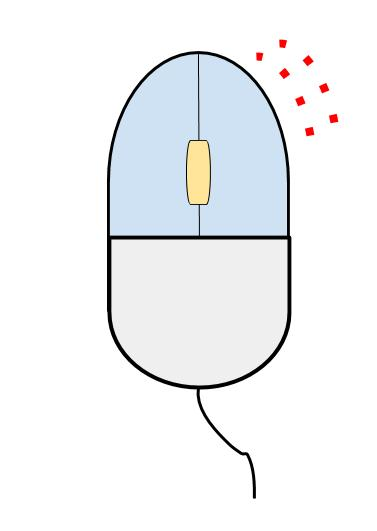
Your mouse generally has a “right-click” and “left-click” button. Left-clicking with the mouse opens a link, application, or a file. You can also left-click to drag items on the screen, select text, and scroll up and down pages. Right-clicking with the mouse opens a drop down menu about the item you are clicking.
Here’s how to perform some basic actions using a mouse:
Use a Mouse | ||||
Click (to open) | Drag and Drop (to move) | Scroll (to read) | Right-click (to open a menu) | |
1 | Open a link, file, or menu: Position the cursor over the object. | Move a file to a folder or attach it to an email: Click the object you want to select. Keep the left button pressed down. | Move up or down in a file or web page: Move the cursor to the far right to display the navigation bar. | Open a menu about a file, link, or image: Move the cursor over the object. Press the button on the right side of the mouse. |
2 | To open it, click it by pressing the button on the left side of the mouse once or twice. | Move the mouse to guide the object to the new location, such as a folder. Release the left button to drop the object in the new spot. | To scroll the page, click the dark square on the bar. Hold the left button down, and move the mouse. | To select an item from the menu, move the cursor over the item you want, then click it by pressing the left button on the mouse. |
Trackpad
Here’s how to perform some basic actions using a trackpad. Your trackpad may have small differences. Experiment with the trackpad to get more familiar with your device.
Use a Trackpad | ||||
Click (to open) | Drag and Drop (to move) | Scroll (to read) | Right-click (to open a menu) | |
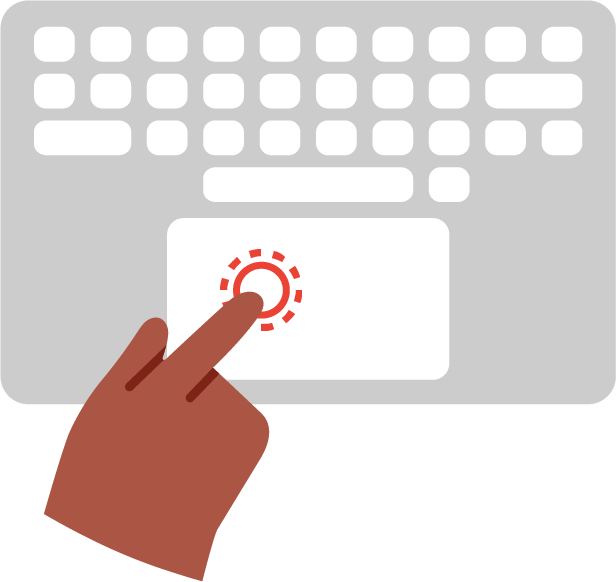
1 | Move the cursor: Gently glide one finger on the trackpad surface. | Drag a file into a folder: Move the cursor to the file, tap and hold down. Move your finger to move the file. | Move up or down a page: Tap the open page with two fingers, hold down, then move them up or down to scroll. | Open a right-click menu: Press down with two fingers at the same time. |
2 | To “click,” move the cursor over an object and tap the trackpad. To “double-click,” tap twice. | Or, use two fingers: Keep the first finger pressed on the object, then use a second finger to move it. To “drop”, lift your finger(s) to release the object. | To zoom in or out when you’re scrolling, pinch inward or outward with two fingers. | To select an option from the menu, move the cursor over the option. Tap the trackpad to select the option. |
Touchscreen
Here’s how to perform some basic actions using a touchscreen:
Use a Touchscreen | ||||
Click (Tap) | Double-click (Double-tap) | Drag | Drag and Drop | |
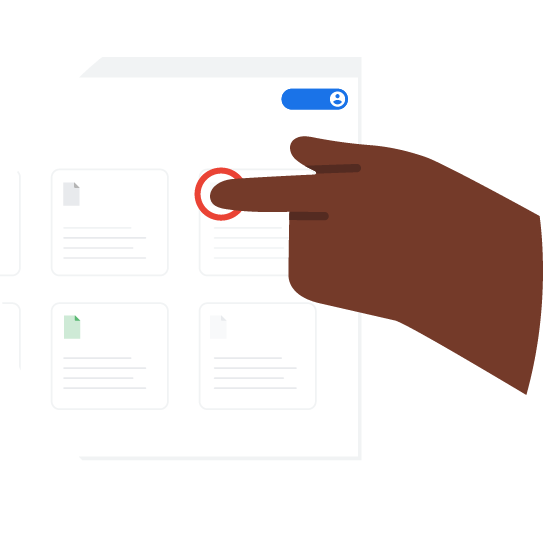
| Select a button or item in a menu: Tap on the touchscreen once with your finger. | Start a program or open a file: Tap on the icon twice in quick succession with your finger. | Move a file or icon to another point on the screen: Put a finger on the file or icon and slide your finger to drag. | Move a file to a folder: Touch the file and slide it to another folder. Then, lift your finger off the screen. |
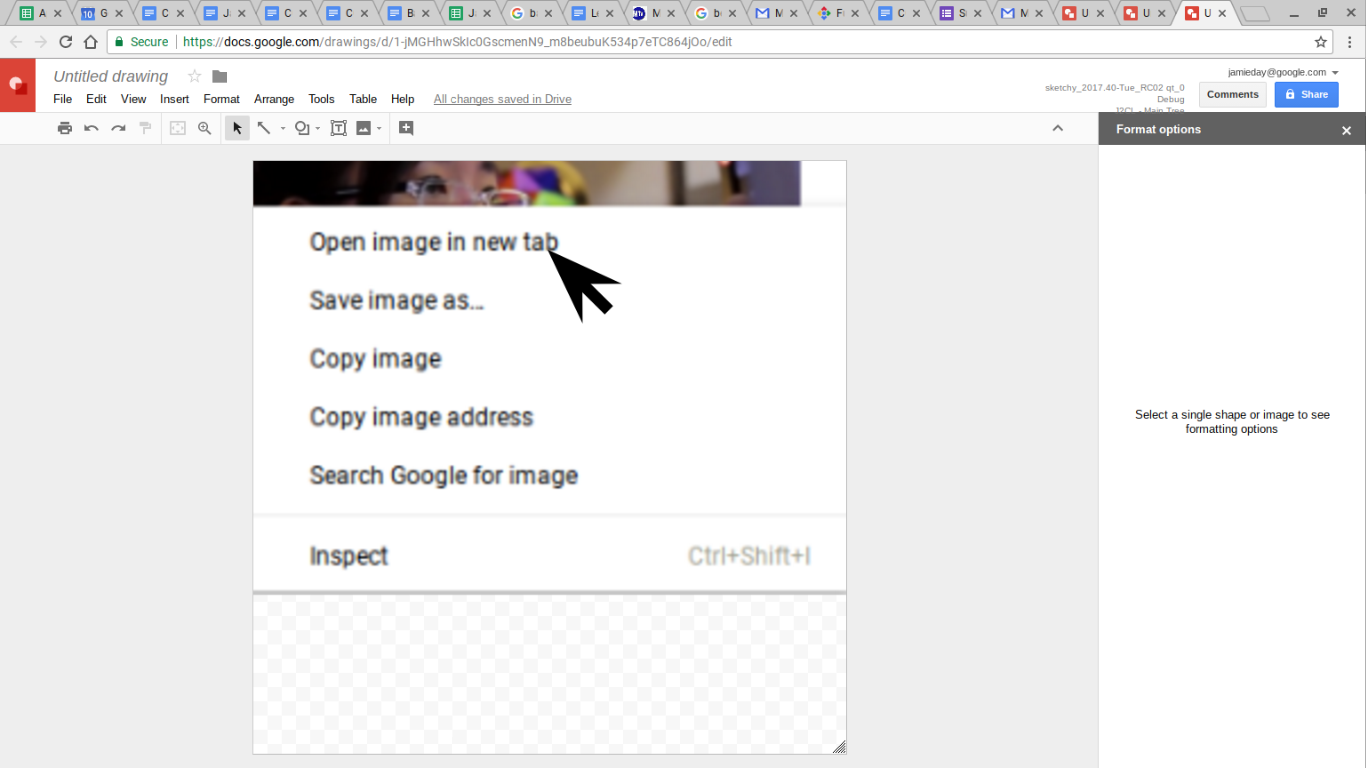
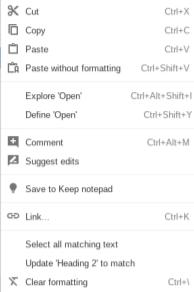
Choose from a list of menu options by right-clicking a link, file, or part of a document. The menu may be different depending on what you click. For example, right-clicking on different items like an image or plain text opens the following menus:
Right-click an image on a website | Right-click selected text in a document |
Now that you are familiar with clicking, you can click to open menus, folders, or applications. Your computer already has some applications installed. Each application has a unique picture, called an icon.
To open an application, move your cursor over its icon, and click it. Use the same method to open menus or folders. To find the applications installed on your computer, review the following table:
Locate and open applications installed on your computer. | ||
PC or Mac | Display | Applications used a lot, such as Google Chrome, may have an icon on the display. Click on the icon to open the application on your computer. |
Chromebook | Launcher | Select the Launcher in the bottom-left corner of your screen. Choose an app to open or search for one. To see all of your apps, click on the arrow at the top of the Launcher. |
Mac | Launchpad | Guide your cursor to the bottom or side of the display to reveal the Launchpad. Click an icon from the Launchpad to open it. |
PC | Start menu | Click the Start menu, then click Programs to open the installed applications. Click an icon to open an application. |
To use your mouse to close any application, folder or menu, click the “X” button in the top right of the window. On Mac computers, the “close” button appears as a red dot on the left side of the toolbar.
Practice what you learned before moving on: |
|
A web browser, such as Google Chrome, is an application on your computer that lets you access information on the Internet. In this section, you will learn how to:
Term | Definition |
Browser tab | A tab that indicates an open web page; you can navigate between multiple web pages by clicking on their browser tabs. |
Keywords | Words or phrases that describe content; use them as internet search terms. |
Toolbar | A strip or group of icons, such as back and forward buttons, a refresh button, and a web address field; web browsers include a toolbar in each open window. |
Web address | The location of a specific web page; also called a URL. |
Web address bar | A text field near the top of a browser window that shows the web address of the current web page. |
Web browser | An application on your computer that allows you to access information on the Internet. |
Every computer comes with a default web browser installed, such as Google Chrome. Open the web browser by clicking its icon.
Browsers function in similar ways, even though they do not look identical. One feature common to all browsers is the toolbar at the top of the browser window. Use this area to type a web address in the web address bar or to open the “browser” menu.
Use the toolbar buttons to close or resize the window. The buttons may look different based on what browser and computer you use. The following image shows a Chrome browser on a Mac.
The following image shows a Chrome browser on a PC:
Other common toolbar and menu functions include the following:
Click the “back” button to return to the previous web page. | |
Click the “refresh” button to reload your current web page. | |
Click the “resize” button to maximize or resize the browser window. On Macs this button appears on the left side and is yellow. | |
Click the “X” button to exit the page and close the browser window. On Macs, the “close” button is red and appears on the left side of the toolbar. |
Most browsers also include a menu. In Chrome, this appears as three dots on the far right side of the window. Open the browser menu to select actions like these from a menu :
| |
| |
| |
| |
|
The web address bar appears at the top of the browser window. Each web page on the Internet has a unique web address, which tells the computer its specific location. You may have seen a web address referred to as a URL.
To view a website, click in the address bar field, and type in the web address for the site (such as www.google.com).
You can also type keywords relating to a topic into this field. Keywords are words or phrases that describe content. When you press Enter, the computer will search for the keywords and return a list of websites that closely match. You will learn more about keywords in a future section.
Practice what you learned before moving on: |
|
Using multiple tabs in a web browser allows you to open several websites without cluttering your screen. To open a new tab in your browser, click the “plus” or “new tab” button. This will give you multiple browser tabs, which show the titles of the open pages. Click on each tab to view the specific web page.
Practice what you learned before moving on: |
|
People search the Internet for many reasons, including the following:
In this section, you will learn how to:
Term | Definition |
Keywords | Words or phrases that describe content; use them as internet search terms. |
Screenshot | An image you can create showing exactly what you’re seeing on your display to view, edit, or share it later. |
Search engine | A computer program for searching for web pages about a topic; returns a list of web pages and more based on popularity and closeness to the search terms. |
Search result | The return from an internet search; consists of the title, web address (URL), and a short description. |
A search engine searches for web pages about a topic. To search the Internet with a search engine, such as Google Search, open a new tab in your browser. Type the name of the search engine you wish to use in the address bar, and type .com after the name (such as google.com). Press Enter.
To search the Internet when you don’t have a specific website in mind, you can use keywords. Keywords are words or phrases that describe content.
Type keywords into the search field and press Enter. The search engine will return a list of web pages, images, videos, and more based on popularity and how closely they match your keywords.
The search engine displays the results in a list that includes a description of each entry and a link you can click to visit the web page. The most popular results and those that match your keywords the most closely appear at the top of the list.
Click the link at the bottom of the page to see more results. These results may not be as popular or useful as your first page of results.
Most search engines also let you filter the results to view only a certain type of result, like images or videos. To filter, click one of the filters on the search results page.
Practice what you learned before moving on: |
|
A search result consists of the title of the web page, the web address (or URL), and a short description of the content on the web page. To open a search result, move your cursor over the title, which usually shows up in blue. Click on the title to open the website. Move your cursor over the “back” button in the web browser toolbar to return to the results page or the search engine.
To keep the search results page open continuously, open a search result in a new tab. Move your cursor over the title of a search result and right-click it. Select “open link in new tab” from the drop-down menu. Move your cursor to the new tab and click it to view the web page. To return to the search results page, click the tab for it.
Practice what you learned before moving on: |
|
Sometimes, you might want to save the information you saw on a web page for a future use. To do this, you can take a screenshot of it.
A screenshot captures exactly what you’re seeing on your display to view, edit, or share it later. You can perform an internet search to look up how to take a screenshot depending on what type of computer you have. Enter keywords like “screenshot” and “Chromebook” in your search engine.
You may also choose to print out the information. Be sure your printer is connected to your computer and find the “Print” option in the browser menu.
A mobile device, such as a smartphone or tablet, is a computer that’s small enough to hold and operate in your hand. They are very popular because of their portability and convenience. In this section, you will learn:
As you work through this section, you may notice small differences between your device and what is shown. Experiment with your device to get more familiar with it.
Term | Definition |
Cellular data | Data that allows you to connect to the Internet through your cell phone signal. |
Mobile apps | Applications that are installed and used on a mobile device. |
Mobile device | A computer, such as a smartphone or tablet, that’s small enough to hold and operate in your hand. |
Screenshot | An image you can create showing exactly what you’re seeing on your display to view, edit, or share it later. |
Streaming | A way of playing live or recorded content through the Internet in “real time” without downloading it to your computer. |
Texting | Typing and sending an electronic message to someone on another mobile device. |
Touchscreen | A special computer screen that allows you to navigate a device with your fingers; not all computers have a touchscreen display. |
Wi-Fi | Wireless connectivity; allows a computer or mobile device to connect to the Internet without needing a wired connection. |
Even though it’s small, a mobile device “is” a computer. Depending on your device, you can use it to do many of the same things you would on a computer, like check and send email and browse the Internet.
And if you’re logged into your Google account on a mobile device, you can see the same Calendar appointments and Gmail messages that you would see on your computer. You can even create an appointment on your phone and edit it on your computer (and vice versa).
As discussed earlier, desktop- and web-based applications are programs that run either on the Internet or locally on your computer. Mobile apps are applications that are installed and used on a mobile device.
Your mobile device comes with a set of apps already installed. Most devices also have an app store where you can look for and install apps. For example, Android phones have the Google Play Store.
After you download an app, you will see its icon on the display. Click on the icon to run the app.
In a previous section, we discussed how to use Wi-Fi to connect to the Internet. Wi-Fi allows a computer or mobile device to connect to the Internet without needing a wired connection.
If you’re in a public place like a library, you can connect to their Wi-Fi if they offer it. Just remember that public Wi-Fi isn’t secure so you need to be careful when using it.
Cellular data allows you to connect to the Internet through your cell phone signal. People often use cellular data when they’re not at home or in a public place where Wi-Fi is not offered or if they have a weak Wi-Fi signal.
Note that if you don’t have an unlimited cellular data plan, you should monitor your plan to make sure you don’t get charged for overusing cellular data.
In order to use your home Wi-Fi to connect to the Internet, you’ll still need a modem and/or router and an internet service provider. You will also need to set up a wireless network.
Depending on your device, you’ll usually find a network option in the Settings or Systems Preferences menu. Click the Wi-Fi network you set up and enter your password.
To connect to the Internet with cellular data, follow the instructions that come with your device to install its SIM card.
Check that your device is connected to the Internet by visiting a website using a web browser.
Change your phone’s settings in the Settings menu. Common settings include the following:
If you already have a Google account that you set up on your computer, you can set up an account on your mobile device to access your email, calendar, and more. This also allows you to access apps from the Google Play Store.
If you don’t yet have a Google account, you can set one up under your device’s Settings app. Tap Accounts, then Add Account. Follow the instructions to create an account.
Mobile devices use a touchscreen display, which allows you to navigate with your fingers instead of with a trackpad, mouse, or keyboard. You can use your fingers to type in passwords and keywords, move files, and more.
A few common gestures you might use on your device’s touchscreen include:
Gesture | Definition and What You Might Use It For |
Pinching | Touching the screen with two spread fingers at the same time, then bringing the fingers together; used to zoom in on information on the screen. |
Scrolling | Touching and holding your finger on the screen, then moving in the direction of the scroll; used for moving up and down in a list, etc. |
Swiping | Touching the screen with a finger, sliding finger across screen, and then lifting up; used to unlock device or move from screen to screen. |
Tapping | Touching the screen briefly with one or more fingers; used to launch an app, select an option from a menu, and more. |
A screenshot captures exactly what you’re seeing on your display so you can view, edit, or share it.
Depending on your device, you can perform an internet search or go to your device’s support site for instructions on how to take a screenshot.
To view, edit, or share it later, open your device’s Photos app to find the screenshot in the Library. Then, tap Share or Edit.
Mobile devices are small enough to hold and operate in your hand. But that doesn’t make them any less useful than a computer. Most mobile devices allow you to:
Mobile devices come with a default web browser, such as Google Chrome, which allow you to browse and search the Internet. Click on the browser app to visit your favorite websites or use keywords to search.
Once you add your Google account to your device, you can use Gmail to send and receive email and Google Calendar to check and edit your schedule. Depending on your phone, you may already have Gmail and Calendar apps installed. If not, download them where you get apps.
Many people find texting more convenient than making a phone call. When you text, you type and send an electronic message to someone on another mobile device. Usually, the other person receives your text message in seconds, and then they can respond. You can use your phone’s Messages app to send a text message to someone else using their phone number.
Mobile devices make it easy to stream videos or listen to podcasts or music outside of the home. Streaming is playing any live or recorded content via the Internet in “real time” without downloading it to your computer.
You might use your device to watch videos on a bus or listen to music while you’re working or exercising. Ports on the sides or bottom of many devices allow you to plug in headphones so you don’t disturb others, or you might use wireless headphones that connect to the phone via Bluetooth.
Many people use the camera on their device to take pictures. For example, you might snap a photo of your friends together, a pretty flower in a garden, or even something you want to sell on the Internet.
When you want to take a picture, the Camera app turns your device into a viewfinder. Then, once your subject looks the way you want it, you can tap on the Shutter icon to take the picture.
Sometimes, you may need a little help getting to where you need to go. A map app like Google Maps can help. It provides directions to your destination and even uses real-time traffic information to find the best route.
Just like on a regular computer, you can communicate and collaborate remotely through video conferencing tools like Google Meet and Zoom on a mobile device. Video conferencing tools allow you to attend work meetings or interviews or just connect with family and friends.
Because using mobile devices is now so common, there are etiquette tips to follow when using them. Here are just a few:
People will leave you messages on your device in a variety of ways, usually by email, voice mail, or text message. You don’t have to respond immediately if you’re busy, but responding in a timely manner shows courtesy and that the message is important to you.
When you’re in a face-to-face social situation like having dinner with someone, avoid using your phone unless you’re sharing something with them or you have an emergency that requires using your phone.
If you must take a phone call in a public place, do your best to find a spot where you won’t disturb others. Speak quietly so that others can’t hear your conversation.
Many people use their mobile device more than their home computer. They may purchase something online, take photos, or check banking statements on their phone. Because of this usage, it’s important to protect your privacy and security. Here are some ways to do that:
Practice what you learned before moving on: |
|
Now that you’ve read through the guide and practiced some of the skills, use this checklist to see what digital skills you’ve learned. Remember...you can go back to reread and practice skills as much as you need.
What Do You Already Know About… | |
How to Get Started Using a Computer? | |
_____ Turning on a computer _____ Finding computer programs _____ Opening computer programs _____ Shutting down a computer _____ Restarting a computer | _____ Putting a computer to “sleep” _____ “Waking up” a computer _____ Adjusting settings like brightness and accessibility |
Connecting to the Internet? | |
_____ Connecting a device to Wi-Fi and the Internet _____ Troubleshooting a lost Internet connection | _____ Being careful with public Wi-Fi _____ Internet activities like sending email, searching for information, and streaming content |
Using a Keyboard, Mouse, Trackpad, or Touchscreen? | |
_____ Using a keyboard’s arrows to scroll _____ Using a mouse _____ Using a trackpad _____ Using a touchscreen | _____ Using right-click to open a drop-down menu _____ Opening and closing folders, menus, and applications by clicking _____ Locating applications, like a web browser on a computer |
Using a Web Browser? | |
_____ Opening a web browser to view a web page _____ Using the toolbar and buttons on a browser _____ Opening a browser menu | _____ Typing a web address or search terms into the address bar _____ Adding more tabs to a browser window |
Performing an Internet Search? | |
_____ Opening a search engine _____ Searching the Internet by entering keywords about a topic _____ Filtering search results _____ Opening a search result link | _____ Opening a search result link in a new browser tab _____ Taking a screenshot of a web page _____ Printing out a web page |
Using a Mobile Device for Different Activities? | |
_____ Downloading and use apps _____ Connecting to Wi-Fi _____ Using cellular data _____ Connecting to the Internet | _____ Changing my device’s settings _____ Using the touchscreen _____ Taking a screenshot _____ A few things I can do, like text and use my camera |
Term | Definition |
Browser tab | A tab that indicates an open web page; you can navigate between multiple web pages by clicking on their browser tabs. |
Cellular data | Data that allows you to connect to the Internet through your cell phone signal. |
Computer program | A list of instructions that tells a computer what to do. |
Cursor | The arrow on the display that you can move with a mouse or trackpad to perform actions. |
Desktop application | A program that runs locally on a desktop computer or laptop; doesn’t require an Internet connection to run. |
Desktop computer | A computer that stays in one place. |
Display | The screen on a laptop. |
Downloading | Receiving data from the Internet on your computer. |
Icon | A unique picture for each program or application on your computer. |
Internet service provider | A company you pay that provides you access to the Internet. |
Keyboard | Where you type on a computer; can also use the arrow keys to scroll up and down on a page. |
Keys | Small buttons on a keyboard with letters, numbers, or symbols. |
Keywords | Words or phrases that describe content. Use them as Internet search terms. |
Laptop computer | A computer that you can take anywhere. |
Mac | Macintosh; an abbreviated name applied to most Apple laptops that are for general use |
Mobile apps | Applications that are installed and used on a mobile device. |
Mobile device | A computer, such as a smartphone or tablet, that’s small enough to hold and operate in your hand. |
Modem | A device that connects your home network to the Internet. |
Mouse | A device that allows you to open files, menus, and applications, to move files, and to scroll. |
PC | Personal computer; the name applied to most brands of laptops that are for general use |
Ports | Openings on your computer that allow you to plug in other devices like a power cord, headphones, or a printer. |
Public Wi-Fi | A Wi-Fi connection that allows a business’s customers to access the Internet on the business’s own Wi-Fi network. |
Router | A device that allows all of your devices to use an Internet connection at once. |
Screenshot | An image you can create showing exactly what you’re seeing on your display to view, edit, or share it later. |
Search engine | A computer program for searching for web pages about a topic; returns a list of web pages and more based on popularity and closeness to the search terms. |
Search result | The return from an internet search; consists of the title, web address (URL), and a short description. |
Streaming | A way of playing live or recorded content through the Internet in “real time” without downloading it to your computer. |
Texting | Typing and sending an electronic message to someone on another mobile device. |
Toolbar | A strip or group of icons, such as back and forward buttons, a refresh button, and a web address field; web browsers include a toolbar in each open window. |
Touchscreen | A special computer screen that allows you to navigate a device with your fingers; not all computers have a touchscreen display. |
Trackpad | A pad on your computer that works like a mouse to open files and links or to select text; tap or move your finger on a trackpad to perform actions on your computer. |
Web address | The location of a specific web page; also called a URL. |
Web address bar | A text field near the top of a browser window that shows the web address of the current web page. |
Web-based application | An application that always requires an Internet connection to use it. |
Web browser | An application on your computer that allows you to access information on the Internet. |
Webcam | A camera on a computer that you can use on the web; commonly used for remote meetings or video calls. |
Website | A collection of web pages on the Internet that revolves around a central theme. |
Wi-Fi | Wireless connectivity; allows a computer or mobile device to connect to the Internet without needing a wired connection. |
Wireless network | A computer network that uses a modem and router to connect you to the Internet. |
Basic Digital Skills Guide |